
MEPCO Online Bill Download PDF – How to Save and Print Your Bill
MEPCO Online Bill Download PDF is a convenient way for electricity consumers to save a copy of their monthly bill and print it whenever needed. If you have misplaced your paper bill or want to keep a digital record, downloading a PDF copy can help you check your payable amount, due date, meter readings, and other billing details.
MEPCO stands for Multan Electric Power Company, which supplies electricity to Multan and several surrounding areas. Consumers can use an online bill-checking service to access available billing information without waiting for a printed bill to arrive.
In this guide, you will learn how to find your MEPCO bill online, save it as a PDF, print a clear copy, and troubleshoot common download problems.
MEPCO Online Bill Download PDF – Quick Steps
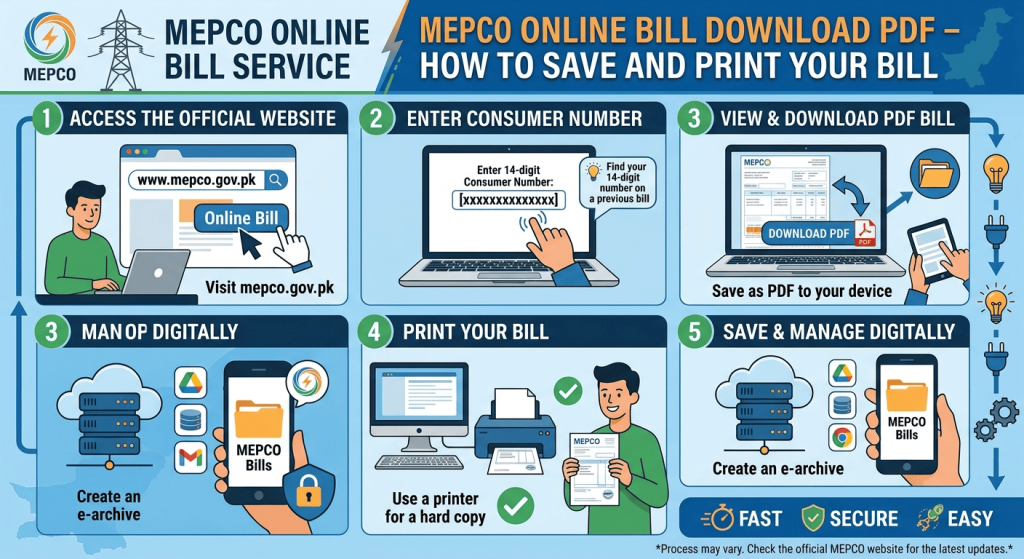
Follow these simple steps to save your electricity bill:
- Open the MEPCO online bill checking website.
- Enter your electricity bill reference number or the customer identification details requested by the website.
- Submit the information to view your available bill.
- Check the consumer details, billing month, amount payable, and due date.
- Look for a download, print, or PDF option if one is available.
- If there is no direct PDF download button, use your browser’s print feature and select Save as PDF.
- Save the file in a folder where you can find it later.
The exact buttons may vary depending on the website and device you use. Always review the bill before saving or printing it.
What Do You Need to Download Your MEPCO Bill?
Before starting, prepare the information needed to retrieve your bill.
1. Reference Number
Your reference number is printed on a previous MEPCO electricity bill. Enter it carefully and check every digit before submitting it.
If you cannot find your reference number, look for an older bill or contact the relevant MEPCO customer service office for assistance.
2. Internet Connection
A working internet connection is necessary to access the online bill service. If the website does not load, check your connection and try again after a short interval.
3. Mobile Phone or Computer
You can usually view and save your bill using a smartphone, tablet, laptop, or desktop computer. A computer may be more convenient if you need to adjust print settings or print several copies.
How to Download a MEPCO Bill PDF on a Mobile Phone
You can save a bill on an Android phone or iPhone using your browser’s built-in print or PDF feature, when supported.
Step 1: Open the Online Bill Website
Open your preferred browser and visit MEPCO Online Bill. Enter the required reference number and open your bill.
Step 2: Check the Bill Details
Before downloading, confirm that the bill belongs to the correct connection. Review the billing month, consumer information, units consumed, amount payable, and due date.
Step 3: Open the Print Option
If a print button is available, tap it. On some mobile devices, you may also use the browser menu and select the print option.
If the website offers a direct PDF download, you can use that option instead.
Step 4: Select Save as PDF
On supported Android devices, choose the printer dropdown in the print screen and select Save as PDF. Tap the PDF or save icon and select a folder.
On an iPhone, use the available print or share options. Depending on the browser and iOS version, you may be able to save the PDF to the Files app.
Step 5: Find Your Saved Bill
Open your phone’s Downloads folder or the location you selected. Open the PDF to confirm that the bill is complete and readable.
How to Download a MEPCO Bill PDF on a Computer
Using a desktop or laptop makes it easier to view the bill and adjust printing settings.
- Open the online bill website.
- Enter your reference number and retrieve the bill.
- Review the displayed information.
- Click the available print option or press Ctrl + P on Windows.
- In the print window, select Save as PDF as the destination.
- Check the page layout and preview.
- Click Save and choose your preferred folder.
On macOS, open the print dialog and use the PDF menu to save the document if that option is available.
Tip: Give your file a useful name, such as MEPCO-Bill-October-2026.pdf. This makes it easier to locate later.
How to Print Your MEPCO Electricity Bill
Once your bill is saved as a PDF, you can print it whenever required.
Printing from a Computer
- Open the saved PDF.
- Connect your computer to a printer.
- Press Ctrl + P on Windows or use the print command on macOS.
- Select the correct printer.
- Check the paper size and page orientation.
- Preview the document and click Print.
Use the print preview to ensure that the reference number, amount payable, due date, and payment information are visible.
Printing from a Mobile Phone
If your phone and printer support wireless printing, open the PDF and select the print option. Choose the compatible printer and check the preview before printing.
You can also transfer the PDF to a computer or send it to a trusted print shop if you do not have a printer at home.
What If You Cannot Download the MEPCO Bill?
Sometimes a bill may not download correctly. The following solutions can help.
The Bill Is Not Appearing
Check that you entered the reference number correctly. Remove any unnecessary spaces and try again.
If the bill is still unavailable, the service may be temporarily experiencing a technical problem, or the latest bill may not yet be available.
The PDF Download Button Is Missing
Not every online bill page provides a dedicated PDF button. If the bill is displayed in your browser, use the print command and choose Save as PDF, provided your device supports it.
The PDF File Will Not Open
Try downloading the file again. If it still does not open, use a trusted PDF reader or your browser’s built-in PDF viewer.
Make sure the file has finished downloading before attempting to open it.
The Printed Bill Is Cut Off
Open the print preview and check the paper size, margins, scaling, and orientation. Select a fit-to-page option if available, and make sure all important bill details appear inside the printable area.
The Website Is Not Loading
Check your internet connection, refresh the page, or try another browser. If the problem continues, wait and try again later.
Avoid entering personal information on unfamiliar websites that claim to provide electricity bills.
How to Check Your MEPCO Bill Before Printing
Downloading a bill is useful, but reviewing it first can help you identify mistakes or unexpected charges.
Check these details before saving your copy:
- Reference number: Confirm that it matches your electricity connection.
- Billing month: Make sure you are viewing the intended bill.
- Units consumed: Compare consumption with previous months.
- Meter readings: Review the previous and current readings.
- Amount payable: Check the total amount shown on the bill.
- Due date: Note the payment deadline.
- Previous balance: Confirm whether any outstanding amount is listed.
- Adjustments and taxes: Review the listed charges if the bill seems unusually high.
If you notice an error, contact MEPCO through its appropriate customer service channel and keep a copy of the disputed bill.
Is a Downloaded MEPCO Bill PDF Valid for Payment?
A PDF copy is useful for checking bill details, keeping records, and printing a readable copy. However, whether a particular copy is accepted for a specific payment or administrative purpose depends on the relevant bank, payment provider, or organization.
Use the current bill details and payment instructions provided through official channels. If a payment service requires a reference number rather than a printed document, follow the service’s instructions.
A saved PDF does not itself confirm that the bill has been paid. Keep your payment receipt or digital transaction confirmation after making a payment.
Benefits of Saving Your MEPCO Bill as a PDF
Keeping a digital copy has several advantages.
Easy Access
You can open a saved bill whenever you need to review its details without searching for a paper copy.
Better Record-Keeping
Saving bills by month helps you compare electricity consumption and charges over time.
Convenient Printing
A PDF can be printed again if the original copy is lost or damaged.
Useful for Billing Complaints
A saved copy can help when discussing an unexpected amount or a possible billing error with the relevant customer service office.
Less Paper Clutter
Digital records allow you to keep copies of several months’ bills without storing every printed page.
For official electricity billing information, consumers can visit the MEPCO official website. Check the available customer services and official announcements for guidance about billing issues, electricity connections, and consumer support.
Frequently Asked Questions
How can I download my MEPCO bill in PDF format?
Open the MEPCO online bill service, enter the required reference number, and retrieve your bill. Use the available download option or select Print and then Save as PDF in your browser.
Can I download my MEPCO bill on my mobile phone?
Yes. You can use a mobile browser to view the bill and save it using the available PDF download or print feature. The exact steps depend on your device and browser.
Can I print a MEPCO bill without downloading it first?
If the online bill page has a print option, you may be able to print it directly. You can also use your browser’s print command. Saving the bill as a PDF first is helpful if you want to keep a copy.
What should I do if I lose my MEPCO bill?
You can retrieve the available bill online using the required reference details and save or print another copy.
Can I use a saved PDF to prove that I paid my bill?
No. A downloaded bill shows billing information but does not prove payment. Keep the official payment receipt or transaction confirmation as evidence.
Conclusion
The MEPCO Online Bill Download PDF process makes it easier to save, access, and print your electricity bill whenever necessary. By entering the correct reference number, checking the displayed information, and using your device’s PDF or print feature, you can maintain a convenient digital record of your monthly charges.
Before printing, confirm the amount payable, billing month, and due date. Save each PDF with a clear filename, keep payment receipts separately, and contact the relevant MEPCO office if you identify a possible billing error.